Camera for Android
- 4.8
- Rating
- 50.00M
- Installs
- Free
- Price

 Analysis by App-foxy
I keep coming back to simple camera apps when I need to capture something quickly rather than build a carefully staged shot. Camera, developed by Litter Penguin, takes that approach seriously. It is a free photography app for Android that focuses on getting from a locked phone screen to a saved picture with as little fuss as possible. After using it as a practical everyday camera, I found its strongest quality is not a long list of creative tools, but the way it stays out of the way.
That simplicity makes it easy to recommend to someone who wants a straightforward replacement for an awkward default camera. It also explains why the app has built such a large audience: it has an average rating of 4.8 from around 332 thousand ratings, with more than 10 million installs. Those figures do not make it perfect, but they do suggest that its uncluttered approach works for many Android users.
From a missed moment to a usable photo
When I miss a moment, I want the next attempt to be simple: bring the subject back into frame, steady the phone, and take another shot without getting lost in settings. That straightforward recovery is where a light, everyday camera workflow can help most, especially for quick records and passing scenes. It also leads to the bigger question of what makes a photo usable once the shutter has been pressed.
You May Also Like

 AccuWeather: Weather Radar
AccuWeather Review: A Quick, Clear Forecast for Everyday Decisions
For everyday plans, the best forecast is the one you can understand quickly. AccuWeather makes rain timing, radar, and local conditions easy to act on, with a few trade-offs.

 Hill Climb Racing
Why Hill Climb Racing Still Turns Crashes Into One More Run
A tiny car, a bumpy hill and one more upgrade: Hill Climb Racing keeps resurfacing because its simple chaos makes every near-miss feel personal.

 AliExpress - Shopping App
AliExpress Makes Global Shopping Feel Personal, but Shoppers Bear the Risk
AliExpress turns a global marketplace into a pocket-sized discovery engine. Its reach is useful, its shopping loop compelling, and its trade-offs easy to miss.

 Lords Mobile: Kingdom Wars
Lords Mobile Is a Kingdom-Building Routine, Not a Quick Match
A case-by-case verdict on the building, battles, device demands, and social commitments that make Lords Mobile rewarding for some players and exhausting for others.

 PDF Scanner app - TapScanner
TapScanner Makes Paperwork Easier to Capture, Check, and Share
TapScanner makes scanning with a phone feel less like a rescue operation and more like a dependable step in getting work done. Its capture tools are useful, though not flawless.

 Block Blast!
 Shows How Much a Puzzle Game Can Leave Out
A quiet grid game shows why puzzle players increasingly value instant clarity, repeatable skill and low-pressure play—and where the genre still needs to catch up.
More From Our News Desk
View All News


The starting point: you need the camera, not a photography lesson
My typical starting condition is familiar: I notice a receipt, a damaged item, a sign, a pet doing something unexpected, or a scene that will disappear in a few seconds. In that moment, menus and decorative filters are distractions. I want the preview, a shutter control, and a reliable path to the finished image.
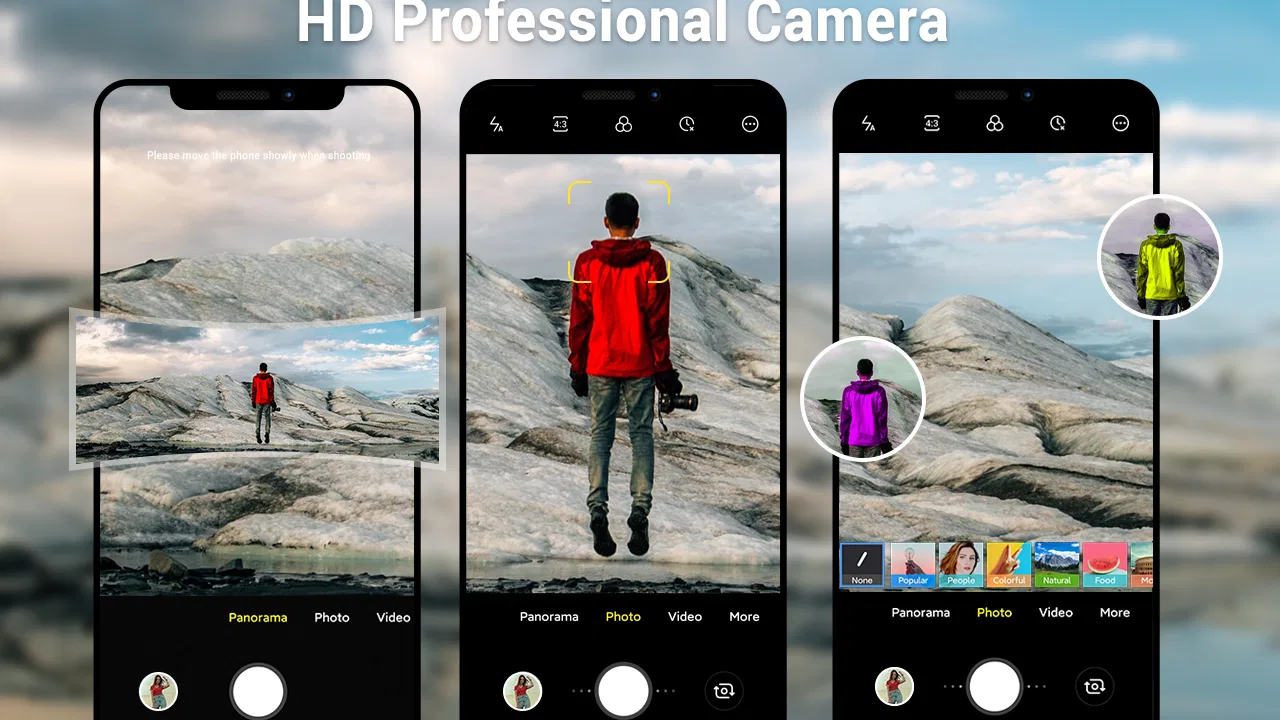
Camera is built around that need. Its store summary describes it as an Android-native HD camera, and that wording matches the experience better than a feature-heavy photography label would. The app feels intended for people who want the phone camera to behave like a camera first. I do not have to think about a social feed, editing timeline, account setup, or a collection of visual effects before taking the picture.
That focus is especially useful on an older Android phone. The app supports Android 6.0 and later, so it remains relevant to users who are not carrying a recent flagship. On a modern device, the hardware still has the final say over image quality, but a restrained interface can make the device feel less frustrating. On an older handset, avoiding unnecessary layers may matter even more when the goal is simply to capture something before it changes.
The app is free to download, and its content rating is Everyone. That combination makes it an easy low-risk option for a family device or for someone who does not want to pay before testing a replacement camera. There are in-app purchases ranging from $2.99 to $9.99 per item, so I would still check the available options before assuming every part of the experience is included at no cost.
Step one: open, frame, and decide what matters
The first useful habit is to treat the preview as the decision-making area. Before pressing the shutter, I check the edges of the frame, the light on the subject, and whether the phone has actually settled. This sounds basic, but a simple camera interface makes those checks easier because there is less competing information on screen.
For a quick document capture, I hold the phone parallel to the page instead of relying on correction later. For a food photo, I move the phone slightly rather than immediately searching for a filter. For a moving child or pet, I take several ordinary frames instead of expecting a special mode to rescue a poorly timed shot. Camera suits this kind of direct behavior: it encourages me to improve the input rather than decorate a weak image afterward.
One practical trade-off is that a minimal camera can feel less reassuring than a full manual camera. Enthusiasts may want explicit control over every exposure decision, while casual users may prefer not to see those controls at all. I see this app as more useful when speed and clarity matter than when I am deliberately experimenting with shutter behavior, advanced focus techniques, or a carefully controlled lighting setup.
Step two: take several frames instead of trusting one
My most useful workflow change is simple: when the subject matters, I capture a small sequence and review it immediately. This is not because the app promises professional results; it is because everyday photography is full of tiny problems. Someone blinks, a hand moves, a reflection appears, or the phone tilts at the exact moment of capture.
With a simple camera, repeating the action is faster than interrupting the moment to adjust a complicated setup. I use this for a handwritten note, a delivery label, a group photo, and anything that may be difficult to recreate. The extra frames also make the later handoff easier because I can choose the clearest image rather than trying to repair the only one.
There is a cost, of course. Taking more pictures creates more material to sort, and a basic camera app does not replace a proper photo-management workflow. If I am documenting a room or photographing many pages, I move quickly through the capture stage and plan to review the results in the phone’s gallery afterward. The app is strongest at acquisition, not at organizing a large archive.
Step three: use the phone’s normal handoff tools
Once I have the image, the next stage is usually outside the camera itself. I open the saved result in the phone’s gallery or share it through the system’s usual options. That separation is important. Camera does not need to become a complete editing suite for me to get value from it; I can capture with a focused tool and then send the file to the app that fits the next task.
For example, I might take a clear picture of a meter reading, inspect it in the gallery, crop it there if necessary, and then attach it to a message. For a marketplace listing, I capture several angles, select the strongest frames in the gallery, and continue in the selling app. For a family moment, I take the picture here and use the phone’s familiar sharing route afterward. The handoff feels natural because the camera is not trying to hold the entire process hostage.
This is also where expectations need to stay realistic. A camera app cannot improve a lens that struggles in poor light, and a clean preview does not guarantee that every saved frame will look equally sharp. I pay attention to the result at full size before sending it. If the image is important, I retake it while the subject is still available instead of assuming an editor will solve blur or lost detail.
What the finished result is good at
The finished result is best judged by the purpose of the photo. For ordinary records, quick snapshots, reference images, and casual sharing, the app’s direct workflow is convincing. I can get a usable picture without feeling that I have opened a small production studio. That is the real benefit: fewer decisions between noticing something and preserving it.
It is also a good fit for people who find feature-packed camera apps intimidating. Someone handing an Android phone to a relative can reasonably expect this kind of interface to be understood quickly. The Everyone age rating reinforces that broad accessibility, although I would still show a first-time user where the saved photos appear and how to reach the normal sharing controls.
For more serious photography, the result depends heavily on the phone itself and on the light. I would not choose this as my only tool for controlled product work, night scenes that require careful exposure, or situations where I need a detailed manual workflow. A dedicated camera app with explicit controls is the better choice there. The advantage of Camera is that it does not make casual shooting feel like technical work.
Three small workflow lessons I found useful
- Capture for the next person, not only for yourself. When I photograph a receipt or a repair issue, I leave enough space around the subject for someone else to understand it. A technically sharp close-up can still be unhelpful if an important edge is missing.
- Retake before editing. If the phone moved or the subject blinked, another quick frame is usually more dependable than trying to rescue it later. This is particularly valuable when the image will be used as evidence, a reference, or a document.
- Separate capture from selection. I take the necessary frames first, then review them in the gallery. That keeps me from losing a moment while searching for a perfect option inside the camera screen.
These habits are not flashy features, but they reveal where this app earns its place. It supports a clean input-to-outcome path: frame the subject, capture enough material, inspect the result, and hand it to the next app or person. The fewer interruptions in that chain, the more useful the camera becomes in daily life.
Where the flow breaks down
The same simplicity that helps in a hurry can become a limitation when the shooting situation demands control. If I want to make deliberate exposure adjustments, compare specialized shooting modes, or build a polished image inside one application, I would look elsewhere. A feature-rich alternative may take longer to open and learn, but it can offer better control for a planned shoot.
There is also a difference between a simple interface and a universally ideal interface. Some users want prominent guidance, extensive customization, or a clear set of professional settings. Others want the app to disappear behind the shutter. Camera is aimed much more strongly at the second group. I would skip it if the main reason for installing a camera app is to explore advanced photographic technique.
Another point is the handoff. Because my workflow often continues in the gallery or another app, the overall experience depends on how comfortable I already am with Android’s photo tools. That is not a serious flaw, but it means this is not a complete answer for someone seeking built-in organization, editing, or publishing. I see it as the capture stage of a larger process, not the entire process.
The current version is 6.7.5, and the app has been available since February 28, 2014. That long presence gives it a sense of continuity, but I would still judge it by the way it fits my phone and habits today. A camera app can be well established and still feel wrong if I need controls it intentionally leaves out.
Who should install it, and who should pass?
I would recommend Camera to Android users who want a fast, uncomplicated photography tool for daily snapshots, documents, family moments, and visual reminders. It is also a sensible option for an older compatible phone, a shared device, or anyone who finds the default camera cluttered. The free entry point makes trying it straightforward, while the large user base and strong average rating provide some reassurance that the basic approach has broad appeal.
I would pass on it if my priority were deep manual control, serious low-light work, extensive built-in editing, or a single app that manages capture, selection, enhancement, and publishing. In those cases, the usual advanced camera alternatives are more appropriate even if they require more setup. The right question is not whether Camera has the longest feature list; it is whether I want fewer obstacles between the subject and the saved image.
After using it through that complete workflow, my opinion is favorable. Camera is at its best when the outcome matters more than the process. I open it, frame carefully, take enough shots to avoid an obvious miss, inspect the result, and pass it on. That may sound modest, but for a camera app, dependable simplicity is a meaningful strength.
For me, the final recommendation is clear: install it if you want a focused Android camera that stays practical and easy to approach. Just keep another tool available for demanding photographic work, and remember that good framing and steady hands still matter more than a crowded interface. Camera by Litter Penguin does not try to turn every user into a specialist, and that restraint is exactly why I would suggest it to a friend who simply wants to take better everyday pictures with less friction.
FAQs for Camera for Android
01What features does the Camera for Android app offer?
The Camera for Android app provides a wide range of features, including manual control over ISO, shutter speed, and white balance. It also offers various shooting modes like HDR, night mode, and panorama. Additionally, users can enjoy real-time filters, face detection, and a built-in photo editor for enhancing images.
02Is Camera for Android compatible with all Android devices?
Camera for Android is designed to work with most Android devices running version 5.0 and above. However, certain features may vary depending on the device's hardware capabilities, such as the availability of specific shooting modes or the effectiveness of image stabilization. It is recommended to check the app's compatibility on the Google Play Store.
03Does Camera for Android require an internet connection?
While Camera for Android does not require an internet connection to take photos or videos, some features like cloud storage integration or sharing options may need connectivity. Additionally, updates and certain in-app purchases might also require an internet connection to function properly.
04Are there any in-app purchases or ads in Camera for Android?
Yes, Camera for Android offers in-app purchases to unlock premium features such as advanced filters and additional shooting modes. The free version may include ads, but users can opt for an ad-free experience by purchasing the premium version. This allows for a more seamless and enjoyable user experience.
05How does Camera for Android compare to the default camera app?
Camera for Android offers enhanced features compared to most default camera apps. It provides more manual controls and creative shooting options, catering to both amateur and professional photographers. While the default app might be more straightforward, Camera for Android delivers a richer, more customizable photography experience.
Pros
- High-quality photo resolution.
- User-friendly interface.
- Variety of shooting modes.
- Fast auto-focus feature.
- Customizable settings.
Cons
- Limited free version features.
- Occasional app crashes.
- Heavy battery usage.
- Ads in free version.
- No direct cloud backup.

Camera for Android
Gallery